How to fix your internet issues
We run you through a checklist of common causes for internet problems and ways to identify yours.
Last updated: 12 Jul 2022
If
you have a problem with your home internet, the list of potential causes is probably
longer than you’d think.
On this page:
You can fix some
connectivity issues yourself, even if you’re not technically inclined, or pay
someone else to fix them. Other times it’s up to your internet service provider (ISP) or
NBN Co to come to the rescue.
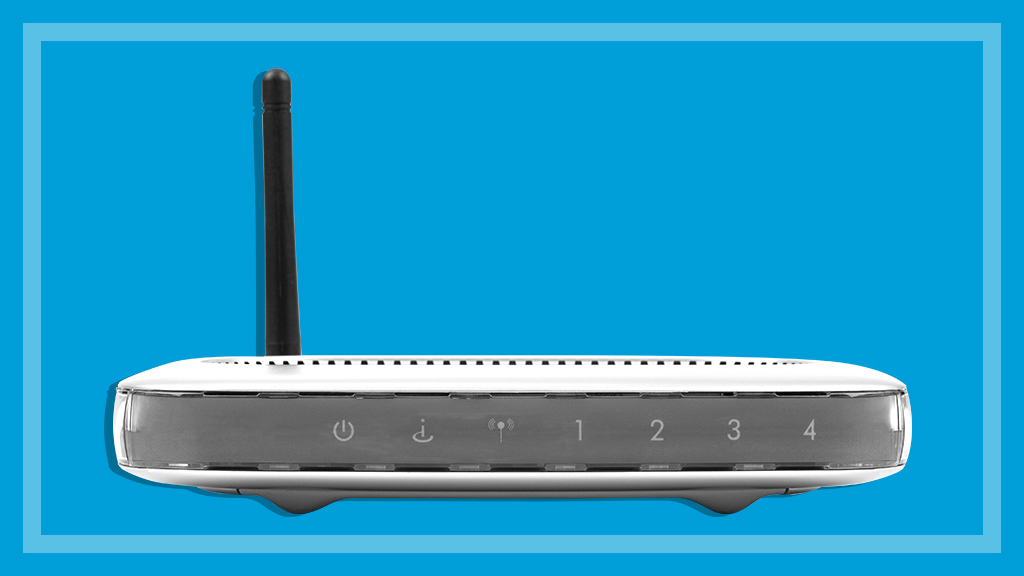
Restart your modem and router (properly)
The first and easiest step to fix a bad internet connection is to power cycle your modem (or NTD if you have an NBN
HFC connection) and router, which can take upwards of 10 minutes if your modem
and router are separate units. A simple on-off restart might not be enough.
Power
cycling involves turning a device off, unplugging it from power for at least 30
seconds to allow the capacitors to discharge, plugging it back in then turning it on.
Start with your router, then your modem or NTD (HFC NTDs don’t have a power button, so
just unplug it from power). Then reconnect and turn them back on in reverse
order, waiting for each device to boot up fully before moving to the next.
Some
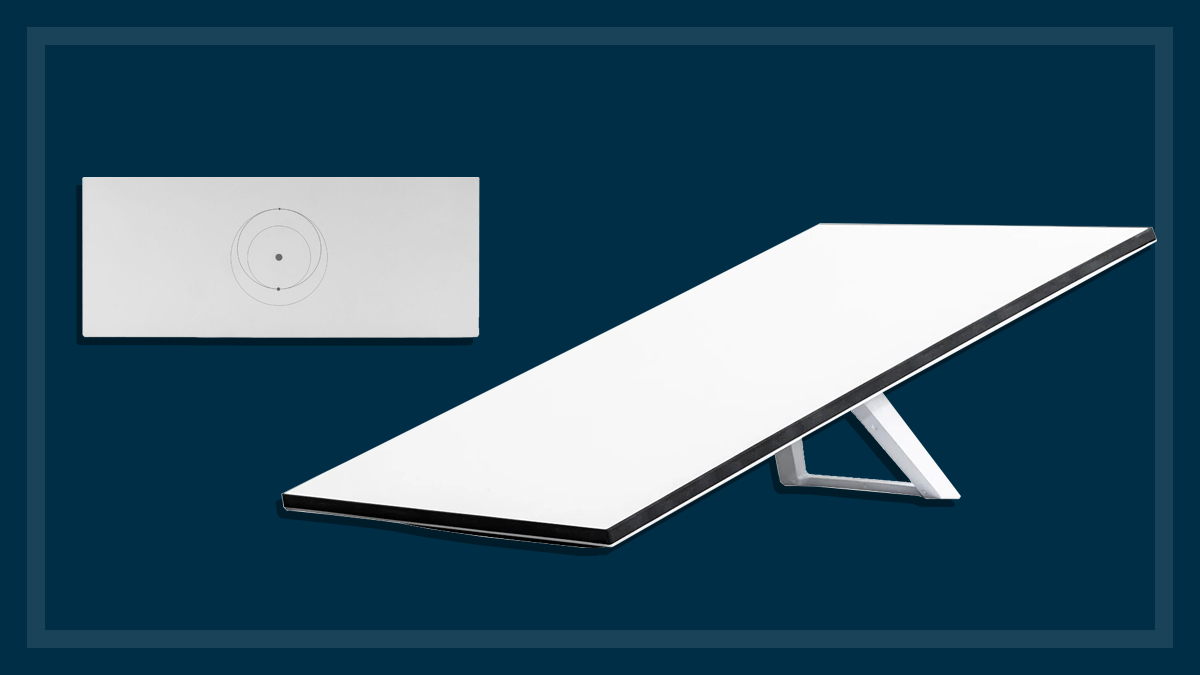
broadband connections, such as NBN satellite, shouldn’t be turned off. But you
can still power cycle your router and see if it fixes anything. If you’re
unsure, ask your ISP.
Ask your ISP to check the connection
If restarting the internet connection on your end didn’t work, ask your internet service provider if they can detect problems on theirs. This is best done with a phone call, so you can get feedback in real time.
They might also run you through some quick troubleshooting scenarios based on the
description of your problem.
If they don’t see anything wrong,
that doesn’t rule out them or the NBN as the issue. But there are plenty of
potential causes of bad internet within your home that you can check before heading back to them
with your torch and pitchfork.
Internet problems caused at home
It’s
time to roll up your sleeves and crack out your checklist. There are a lot of
problems you can fix yourself, ranging from easy to hire-a-professional.
Wi-Fi router placement and coverage
Where you put your router can have a massive impact on Wi-Fi performance. So can the layout of your home, but this can often be solved with a mesh router
network. They’re more expensive than some stand-alone routers, but can significantly improve coverage for large homes or premises with internal brick walls.
Not sure where to start? Check out our advice on the best place to put your Wi-Fi router.
Update your router firmware
Like
any connected device, your router needs occasional updates to fix bugs
or improve security, and these are usually easy to get. Your
router should have a sticker somewhere that says how to access its settings.
Once you’re in, look for a firmware update notification.
The update will disable your internet connection while in progress, but should happen quickly.
Wi-Fi interference
High-density
housing can cause Wi-Fi interference from too many people using the same
frequency channels. Some high-end routers will automatically tweak your
frequency channel to help with this, some can be manually changed, and some can’t
do it at all.
Check
your router’s settings menu or user guide for channel control options.
A bad modem or router
Your
modem, router or modem/router might be old, faulty, or a poor performer.
An
old router might be using out of date Wi-Fi technology, which can slow you down
or be more susceptible to interference from nearby signals. Wi-Fi 6E is the
latest standard, but Wi-Fi 6 (802.11ax) or Wi-Fi 5 (802.11ac) shouldn’t be
causing these problems. Any router running a standard prior to these, such as Wi-Fi 4 (802.11n), could easily cause internet problems.
But it’s not just the age of your modem or router. Some
new, cheaper models (often supplied by ISPs) can be lacklustre,
to say the least.
Unfortunately,
the best way to check if your router is faulty or underperforming is to try a
different router. Most people don’t have a spare one sitting around, but you
might be able to check if your ISP would be kind enough to send one out for you to test
with. It’s unlikely, but stranger things have happened.
Or
you can always borrow one from a kind and patient friend.
Check your cables
Your internet problems might simply be a bad ethernet cable between your modem (or NTD) and router, which is easy to test if you have another one in the house, and an affordable fix. If you need a new cable, Cat6 cables are best, but Cat5e will work just fine unless you somehow need internet speeds above 1Gbps. Avoid Cat5 or lower.
If you have a copper-based NBN connection such as FTTN, FTTC or FTTB, the cable between the wall and your modem could also be the culprit. If you decide to replace this, make sure whatever you buy is NBN-compliant.
If you have an HFC NTD, check whether the installing technician added an unnecessary cable splitter for the coaxial cable. Splitters are intended for premises that need both a Foxtel and NBN connection, but sometimes get installed for no reason.
These splitters have reportedly been the cause of many a problem with HFC NBN connections.
Problems with power
Unstable
power connections can cause problems with connectivity devices like modems and routers.
If
you’ve daisy-chained power boards together to reach your modem/router, try
plugging it straight into a wall socket via an extension cord. The same goes
for a single, cheap power board running multiple devices.
CHOICE tip: Cheap or not, you shouldn’t connect several power boards together. It’s dangerous and they’re not designed for it.
Background traffic
Automatic
updates on any device can use a lot of data, as can automatic file or photo
uploads. The more devices you have, the more likely one of them is updating or
backing something up.
Most
of the time you can schedule updates to happen between certain hours, or you
can disable them and perform updates manually. But the method for doing this
depends on the device, operating system, app or program, and potentially other
factors.
Does gaming slow down your internet?
Online
gaming generally won’t congest your internet, but some titles require huge
initial downloads, followed by regular updates. The download servers of large
game publishers can often send data your way as fast as you can download it,
completely maxing out your internet connection until they’re done.
Some
games or online marketplaces let you put upper limits on download speeds,
leaving spare room for other users no matter the size of the game or patch.
There are also third-party programs such as Net Limiter (you need a paid version) that can do the same
thing. And some high-end routers can set per-device speed limits.
Your devices
If
the problem doesn’t affect your whole house equally, individual devices
such as laptops, tablets or phones could be old or faulty. Old devices might have
out-of-date connection technology, slow data transfer rates, slow storage
read/write speeds, or need a factory reset to clear out digital clutter, among
other things. They
might also have malicious software that needs clearing out.
Inside your walls
If
you live in an older dwelling and have a copper-based NBN connection (FTTN, FTTC or FTTB), the copper wiring
within your walls might have degraded to a point where it can’t handle an NBN
connection.
Even if it was fine back when you had ADSL, this doesn’t mean it
was ready for the NBN. Think of it like an old rust bucket versus a modern race
car. The race car will win easily on a well-maintained track, but the rust bucket
might do better on a pothole-ridden road.
If
you live in an apartment building, the problem could be widespread and require
permission from strata to address.
Given
how hard this issue is to test and fix, treat it as a last resort (short of going to the TIO) unless there’s really good evidence it’s the culprit. Copper cabling within a premises is not NBN Co’s responsibility, so you’ll need to hire a registered cabler out of your own pocket to run new cables, be they copper or ethernet.
There’s another in-wall problem that’s simpler to fix: you might be getting line interference
if there are still two or more active phone wall ports in your home. Disconnecting
all but the one you use for internet could help.
Once
again, you’ll need to hire a licensed professional, but the process should be
quick in most instances. Even so, it’s probably best to look for external problems before paying
someone to come out and inspect your wall ports.
Internet problems caused by your ISP or the NBN
Once
you’ve ruled out most of the in-home causes for your dodgy internet, it’s time to look elsewhere. Let’s
take a look at potential problems outside your home.
Call
your ISP
Your
internet service provider should be your one-stop shop for internet problems outside your
control.
Whether
the problem is with your premises’ NBN equipment, the NBN itself, the ISP-owned portions of
the network or other factors, your ISP should investigate the problem and
advise you on next steps. Your ISP should also liaise with NBN Co to fix any
problems, where appropriate.
But
ISP technical support isn’t always as helpful as it should be, so here are a
few pointers that might be worth raising if your problem is going unsolved.
Be
sure to get a reference number from your support personnel and take notes
about what you’ve discussed. This will make things go faster if you need to
contact them multiple times.
Is
it congestion?
If
your connection slows down during typical busy hours (7pm–11pm), it’s likely
because of congestion.
Congestion
can come from multiple sources, but there are two common culprits.
- Your ISP must buy enough network access from at least two
sources to make sure it can meet the traffic demands of its customers. These sources are the NBN, and
telco-run networks. If it fails to buy enough access on either (or both), your
connection can slow right down. Switching ISPs is the best fix for this.
- The NBN might not be up to the task in your area, but this is the
rarer option when it comes to congestion. If it does turn out the NBN in
your area can’t handle peak-hour traffic, you can ask your ISP to look into it,
but your options are limited. That said, most NBN connections are reliable, even if it’s reliably bad. So if your problem is to do with internet drop-outs and speed fluctuations outside of peak usage hours, it’s more likely than not the NBN isn’t the problem.
Connection drop-outs
Unreliable connections are hard and frustrating to pin down. Internet service providers tend to investigate problems remotely by performing line checks on your connection. But this means short-term (or sometimes long-term) drop-outs will go undetected because your connection was working fine when the test was performed.
As such, it’s important to communicate your problem clearly, including:
- the nature of the problem
- when it occurs
- any fixes or tests you’ve already tried yourself.
Answer any questions your ISP has and follow the instructions carefully. Above all, try to stay calm. You might have to repeat yourself more than once and it’s likely they’ll have their own checklist to run through before you can move towards a solution.
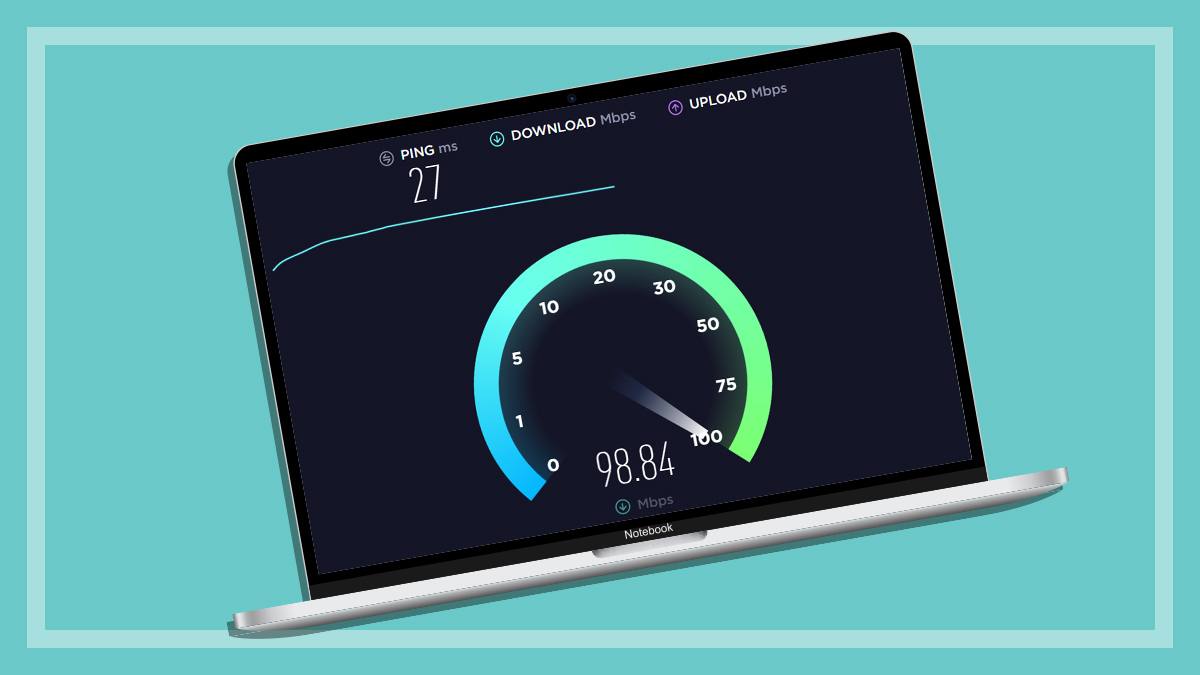
If your ISP continues to insist everything is fine, start keeping a connectivity log. Next time your internet goes out, do a speed test (such as via speedtest.net) and take a screenshot, which should include the date and time. Once you have enough evidence, they should be more than willing to listen.
Make a complaint
If your ISP isn’t solving your problem, contact them and make a complaint via their own channels. At this point, a clock starts ticking.
Your ISP should contact you and tell you how long they think the problem will take to solve. Non-urgent complaints must be solved within 15 working days. If you agree with their proposed solution, they have a further 10 working days to complete it, with some exceptions.
If you don’t like their solution, you can ask to escalate the complaint or speak with a supervisor.
Urgent complaints
If your complaint qualifies as urgent, your ISP must resolve it within two working days.
The Australian Communications and Media Authority (ACMA) defines urgent complaints as:
- you’ve asked your telco for help with financial hardship and your complaint relates to this
- you receive ‘priority assistance’ for a landline
- your telco has disconnected your phone without following the standard process
- your telco is about to disconnect your phone without following the standard process.
The last line of defence
If you’re reasonably certain the problem isn’t inside your house, and your ISP is failing to resolve your complaint, you can lodge a complaint with the Telecommunications Industry Ombudsman (TIO) at tio.com.au/complaints.
Lodging a complaint with the TIO should be a last resort (short of hiring a cabler to test your in-home wiring without sufficient evidence).
The TIO will want to know:
- if you’re a residential or small business customer
- if you’re the account holder or you have the account holder’s approval to make the complaint
- what the complaint is about
- the name of the telco and the account number
- any complaint reference number provided by your telco.
Again, keep track of all communications on your issue. These processes can take time, so having records will be useful if your internet problems take a long time to solve.
Alex Angove-Plumb worked at CHOICE from 2018 to 2024 as a technology content producer.
You can find him on LinkedIn.
Alex Angove-Plumb worked at CHOICE from 2018 to 2024 as a technology content producer.
You can find him on LinkedIn.